Paste in Two Lines and Get a Video for Your Brand

TL;DR Summary: Create Instagram and TikTok-style videos easily using Codex and ChatGPT by just pasting in two lines. Install HyperFrames, input your topic, and get a video with bouncy captions synced to narration. Edit in Codex for customizations and export the final product. Ready to make engaging videos effortlessly? Learn more below.
All I did was paste in 2 lines, and here’s the video I got for RankCheck Pro:
No too bad, right?
You don’t need much to do this. The first time, it took a little while since there were some libraries that needed to be installed, but after that, video generation gets faster. You really just need to pay for a ChatGPT account.
Step by Step Guide:
1. Install Codex and get it connected to your Open AI / ChatGPT account.
2. Run this command in Codex:
codex plugin marketplace add heygen-com/hyperframes --sparse .codex-plugin --sparse skills --sparse assetsThis installs HyperFrames on your computer / in Codex.

3. Paste in this command with your topic or brand:
Make a 9:16 TikTok-style hook video about [TOPIC] using /hyperframes, with bouncy captions synced to a TTS narration.I gave it my brand and website to use. You can also specify Instagram if you want.
It’s probably going to need to install a bunch of things. I just say yes and that it’s fine to keep running those kinds of commands.
4. Done
Once the video is created, it opens your web browser. It’s basically using HTML to create the video, so it opens your browser, connecting to a server it spun up on your computer. This is generally safe to do (nothing is 100% not safe with this kind of thing). In the browser, you can play the video and export it.
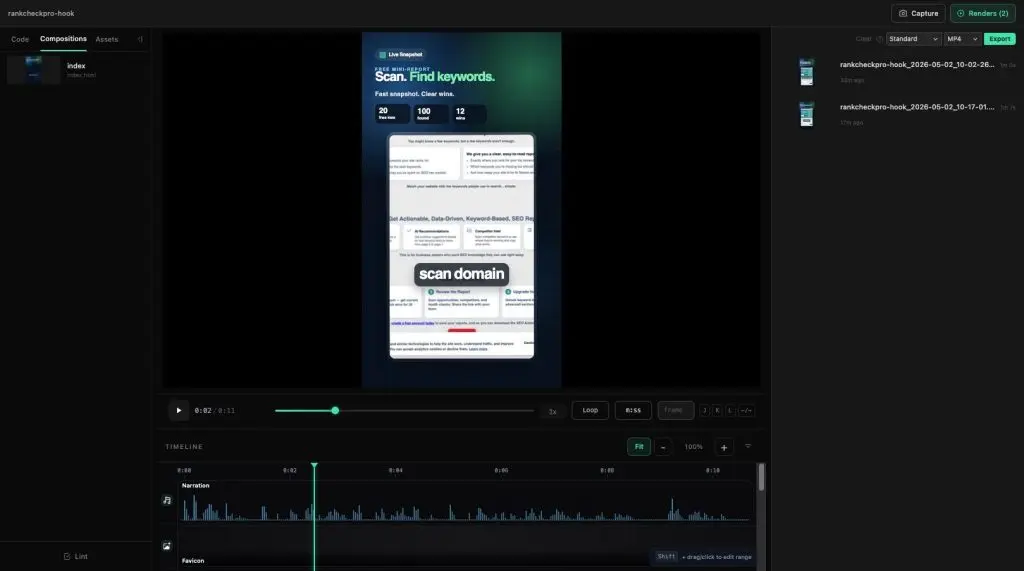
If you want changes, just go into Codex and ask it to make the changes you want until you’re happy with it. You can even ask it for snapshots of different parts of the video so you can choose a good cover image.
Use This Instead of CapCut or Descript to Clean Up Your Videos
Just use this prompt, putting in the right paths (this is set to a “Videos” folder on the Desktop on a Mac) to remove filler words and clean up your videos:
I want to add an automated video cleanup workflow to this Hyperframes project.

Please inspect the repo first and use the existing project structure, CLI patterns, package scripts, and documentation before making changes.

Use this input folder:

~/Desktop/Videos/

The folder may contain one or more video files. Please process common video formats such as .mp4, .mov, .m4v, and .webm.

For each source video, generate a cleaned version in this same folder using this naming pattern:

original-name-cleaned.mp4

For example:

~/Desktop/Videos/interview.mov

should become:

~/Desktop/Videos/interview-cleaned.mp4

The cleanup should remove:
1. Awkward silent pauses longer than 1.0 second.
2. Obvious standalone filler words such as “um,” “uh,” “er,” and “ah.”
3. Obvious retake sections near phrases like “start over,” “scratch that,” “let me say that again,” “no, that’s wrong,” or “let’s do that again.”

Please make the first version conservative. Do not aggressively remove words like “like,” “so,” “actually,” or “basically” unless they are clearly standalone filler words.

Implementation requirements:
- Use Hyperframes’ existing transcription workflow if available.
- Use word-level timestamps from transcript JSON.
- Use FFmpeg for the actual video/audio cutting if appropriate.
- Create one transcript JSON file per video.
- Create one edit-decisions JSON file per video showing what was removed and why.
- Preserve audio/video sync.
- Add about 0.1 seconds of padding around cuts to avoid harsh jumps.
- Keep the original source videos untouched.
- Skip files that already end in -cleaned.mp4.
- Add a clear usage example to the README or a script comment showing how to run this against ~/Desktop/Videos/.

Suggested output files for a video named interview.mov:
- ~/Desktop/Videos/interview-transcript.json
- ~/Desktop/Videos/interview-edit-decisions.json
- ~/Desktop/Videos/interview-cleaned.mp4

Before coding, briefly identify where in the repo this should live, what files you plan to change, and what command I should run after implementation.

Then make the changes.
What Do You Think?
Leave some comments below. I think it’s pretty darn cool.
📄 Download a PDF of This Article