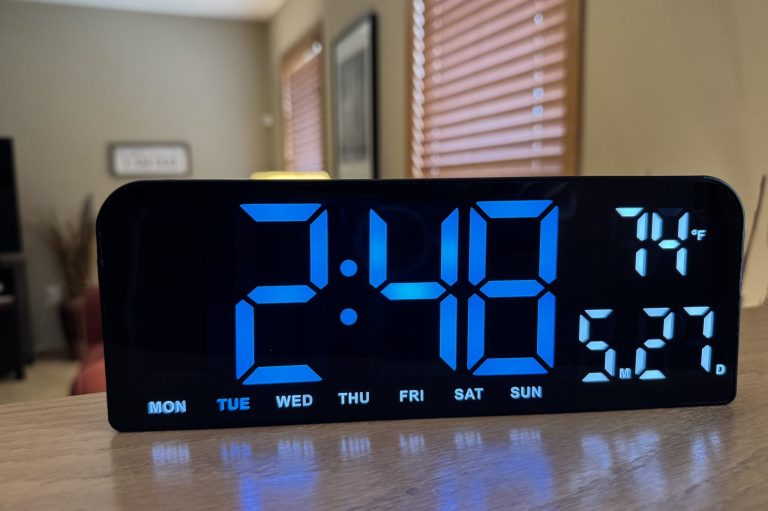
Hama DS-6609 Clock Manual
 Reading Time: 4 minutes
 TL;DR Summary: Most settings on the DS-6609 clock are done by holding a button for about 3 seconds to enter setup, then tapping to change values. The SET button handles time and date settings, the + button changes brightness and display mode, and the alarm button handles alarm setup and alarm on/off control.
How to Set a DS-6609 LED Digital Clock
If you found the original paper instructions hard to follow, you are not alone. This is a cleaner, easier-to-understand version of the manual for the DS-6609 LED Digital Clock. I rewrote it here so it is easier to use as a quick reference and hopefully helpful to anyone else trying to set the same clock.
DS-6609 Instructions PDF Download
The original PDF is included and I’ve added these instructions in as well to make it easier to understand.
What This Clock Can Do
- Display time only
- Cycle between time, date, and temperature
- Use 12-hour or 24-hour time
- Show temperature in °C or °F
- Adjust brightness automatically or manually
- Remember settings during power loss with battery backup
- Use snooze and different alarm repeat modes
Important: Do not block the sensor window on the clock. The automatic brightness feature depends on it.
What the Buttons Do
SET button
Use this for the main clock settings like time, date, and temperature format.

+ button
Use this to increase values during setup. During normal use, tapping it adjusts brightness. Holding it for about 3 seconds changes the display mode.
Alarm button
Use this for alarm settings. During normal use, tapping it turns alarms on or off. Holding it for about 3 seconds opens alarm setup.
What the Screen Indicators Mean
- PM light: Shows when the clock is in 12-hour mode and the time is in the afternoon or evening.
- Alarm light: Shows when an alarm is turned on.
- Temperature area: Shows the current temperature when that display mode is active.
Tip: When the manual says “long press,” it means hold the button for about 3 seconds.
How to Set the Time, Date, and Temperature Format
- Hold the SET button for about 3 seconds. This opens the main settings.
- Choose 12H or 24H. Tap the
+button to switch between them, then tap SET to continue. - Set the hour. Tap the
+button until the hour is correct, then tap SET. - Set the minutes. Tap the
+button, then tap SET. - Set the year. Tap the
+button, then tap SET. - Set the month. Tap the
+button, then tap SET. - Set the date. Tap the
+button, then tap SET. - Choose °C or °F. Tap the
+button to switch temperature units. - Wait a moment or finish the sequence to exit settings mode.
How to Change the Display Mode
Hold the + button for about 3 seconds to rotate through the display options.
- Time only
- Time, date, and temperature cycle
If you prefer a cleaner look, use time only. If you want more information shown automatically, use the cycling mode.
How Brightness Works
You can either let the clock adjust brightness automatically or choose a fixed brightness yourself.
Automatic brightness
The clock includes a light sensor and can dim or brighten automatically based on room conditions.
Manual brightness
Tap the + button during normal use to cycle through the brightness levels.
Display off option
One of the brightness settings turns the display off. If the screen seems to disappear, keep tapping the + button to cycle to the next setting.
How to Turn Alarms On or Off
Tap the alarm button during normal use.
- If the alarm is on, the matching alarm indicator light shows on the screen.
- If the alarm is off, that indicator disappears.
The clock supports separate alarm groups, so you may need to cycle through them depending on which alarm you want active.
How to Set an Alarm
- Hold the alarm button for about 3 seconds. This opens alarm setup.
- Choose 12H or 24H if prompted.
- Set the alarm hour. Tap the
+button, then tap the alarm button to continue. - Set the alarm minutes. Tap the
+button, then tap the alarm button again. - Set snooze time. Choose from 5 to 60 minutes.
- Choose the repeat mode:
- 5-6 = double weekend
- 6 = single weekend
- 7 = daily alarm
- Finish setup and let the clock return to normal display.
How Snooze Works
When the alarm rings, tap any key once to start snooze mode. The alarm indicator will flash slowly while snooze is active.
How to Stop the Alarm
When the alarm is ringing, press and hold any key to turn the alarm off and move into the next alarm state.
Troubleshooting Tips
- The display is too dim: Tap the
+button to increase brightness, or move the clock if the sensor is reacting to a dark room. - The display looks off: You may have cycled into the display-off brightness setting. Tap the
+button again. - The alarm is not going off: Make sure the alarm icon is visible and double-check the repeat mode.
- The settings are confusing: Remember that SET is mainly for clock settings, while the alarm button is mainly for alarm settings.
FAQs About the DS-6609 Clock
How do I set the time on a DS-6609 clock?
Hold the SET button for about 3 seconds, then tap the + button to change each value and tap SET to move to the next setting.
Why is my LED clock screen dark?
You may have cycled into the display-off brightness setting. Tap the + button again to move to the next brightness level.
How do I change this clock from 12-hour to 24-hour time?
Hold SET to enter settings, then use the + button to switch between 12H and 24H.
How do I set the alarm on this clock?
Hold the alarm button for about 3 seconds, then use the + button to set the hour, minutes, snooze time, and repeat mode.
Final Note
The original printed instructions for this clock are pretty rough, so a few parts of the wording had to be interpreted. I kept this version as faithful as possible while making it easier to understand and actually use.
📄 Download a PDF of This Article