How Do I Get My Website to Show Up for “Near Me” Keywords?

TL;DR Summary: To rank for “near me” searches, make sure your website footer has your business name, address, and phone number (NAP). Link your address to your Google Business Profile with a CID link, and add LocalBusiness schema markup. These steps tell Google exactly where you’re located so you can show up in local results.
If you’ve ever wondered why some businesses show up for searches like “pizza near me” or “plumber near me” and others don’t, it usually comes down to local SEO basics. The good news is you don’t need a complicated strategy or expensive tools to get started. There are plenty of free SEO tools available and simple updates to your website that can help Google connect your business with people searching near by.
Here are the step-by-step instructions:
Step 1: Put Your Business Information in the Footer
Your website’s footer should include your business name, address, and phone number (NAP). This makes it easy for both customers and search engines to know where you are. Consistency is key: make sure your NAP matches exactly with your Google Business Profile, down to abbreviations (for example, “St.” vs “Street”).
Bonus: Adding your hours of operation is another local SEO signal and helps customers at the same time.
Step 2: Link to Your Google Business Profile with a CID Link
A CID link is the unique identifier Google gives your Business Profile. Linking your business address in your website footer to your CID URL helps tie your website and Google Business Profile together. It’s like saying, “Yes, this is the same business.”
How to Find Your Google Business Profile CID Link
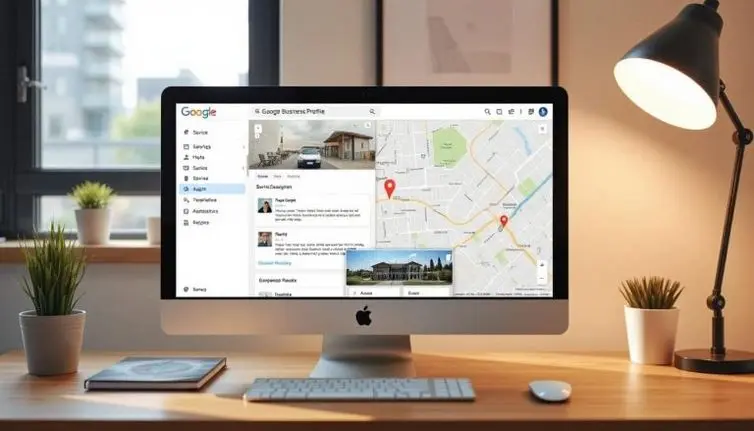
Your CID (Customer ID) is the unique identifier Google assigns to your Business Profile. Linking to it from your website helps tie your site and profile together for stronger local SEO signals. Here’s how to find it:
- Go to Google Maps and search for your business name.
- Click on your business listing so the full profile opens on the left-hand side.
- Right-click anywhere on the page and choose “View page source” (or press
Ctrl+U/Cmd+Option+U). - In the source code page, press
Ctrl+F(orCmd+F) and search for “cid=”. - You’ll see a long number following
cid=— that’s your CID. Copy the full URL that contains it. It will look something like:
https://www.google.com/maps?cid=12345678901234567890 - Use this URL as the link for your address in your website footer.
Tip: There are also free online “Google CID Finder” tools where you just paste your business name and get the CID link, but doing it directly in Google Maps ensures you have the correct, current ID.
Why Does the CID Link Matter?
You might wonder why you can’t just link to your regular Google Maps listing. The difference is that the CID link is Google’s unique identifier for your exact business profile. It removes any ambiguity and makes it crystal clear which business your website is connected to.
When Google’s crawler sees your address linked directly to that CID, it builds stronger trust between your website and your Google Business Profile. That trust is what helps you appear more often in the local map pack and in “near me” searches.
Step 3: Add Local Schema Markup to Your Website
Schema markup is code you place on your website that search engines read where you can “tag” information. This puts pieces of your website into useful bits for search engines to use. For local businesses, the LocalBusiness schema helps Google confirm your business details and location. This improves your chances of showing up in map packs and “near me” searches.
Here’s a basic example you can adapt for my cousin’s website (replace with your own info):
<script type="application/ld+json">
{
  "@context": "https://schema.org",
  "@type": "LocalBusiness",
  "name": "Pooptopia Dog Waste Removal",
  "image": "https://pooptopia.dog/logo.png",
  "@id": "",
  "url": "https://pooptopia.dog/",
  "telephone": "+1-262-555-1234",
  "address": {
    "@type": "PostalAddress",
    "streetAddress": "1234 Main St",
    "addressLocality": "Kenosha",
    "addressRegion": "WI",
    "postalCode": "53140",
    "addressCountry": "US"
  },
  "openingHoursSpecification": [
    {
      "@type": "OpeningHoursSpecification",
      "dayOfWeek": [
        "Monday",
        "Tuesday",
        "Wednesday",
        "Thursday",
        "Friday"
      ],
      "opens": "08:00",
      "closes": "18:00"
    }
  ],
  "sameAs": [
    "https://www.facebook.com/pooptopia",
    "https://www.instagram.com/pooptopia"
  ]
}
</script>
You don’t have to write this by hand. Tools like ChatGPT can generate schema markup for you — just paste your details and then add the code to your site.
Where Do I Put Schema Code on My Website?
The schema code should go into the <head> section of your website. If you have direct access to your theme files, you can paste it into your header.php file right before the closing </head> tag. For most people, though, it’s easier and safer to use a plugin that lets you add code snippets into your site header without touching theme files. Popular options include “Insert Headers and Footers” or SEO plugins like Rank Math and Yoast.
If you’re using WordPress, just paste the code exactly as shown (no formatting changes) into the header PHP file or into your site’s header. There are plugins you can use to help do this. I use WP Headers and Footers. Once it’s in place, Google can read it the next time your site is crawled.
How to Test Your Schema Markup
After you’ve added the code, you’ll want to confirm it’s working correctly. Google provides a free testing tool called the Rich Results Test. Here’s how to use it:
- Go to the Rich Results Test.
- Enter your website URL and click Test URL. (You can also paste the code directly under “Test code.”)
- Google will analyze your page and tell you if it detects valid schema. If there are warnings or errors, the tool will show you what to fix.
Once the schema passes validation, you’re good to go. Over time, this structured data can help improve your chances of showing up in local packs and “near me” search results.
Why These Steps Matter for “Near Me” SEO
Google’s main job with local search is to match intent with location. When someone types “dog poop pickup near me,” Google wants to show trustworthy, nearby businesses. By adding NAP info, linking to your Google Business Profile, and including schema markup, you’re giving Google clear signals about your legitimacy and location.
Extra Tips to Go Even Further
- Get reviews: Encourage happy customers to leave reviews on Google. High ratings increase your visibility.
- Embed a map: Adding a Google Map to your contact page is another local signal.
- Be consistent everywhere: Use the same business info across Yelp, Facebook, Yellow Pages, and other directories.
“Help! Do What? I Don’t Get This”
And, I’ll admit, this process is pretty techy and geeky. Most business owners will read this and say, “Pff! Forget that. I have no idea what this means.” I get it. This is new and most people aren’t familiar with how to get into the technical parts of their website. Plus, you don’t want to mess something up. Like what if you break your website – then what?
Luckily, I have a website design company and we have a Website Support Team who helps small businesses like yours. We have a special for new clients where you pay a little bit and get to try our service and team.
Final Thoughts About Being Found for “Near Me” Searches
Showing up for “near me” searches isn’t about luck. It’s about proving to Google that your business is real, consistent, and active. Start with your website footer, link to your Business Profile, and add schema markup. These small steps can make a big difference in getting found by customers nearby.
Go read my article about they “Near Me” keyword specifically, since this relates:
📄 Download a PDF of This Article