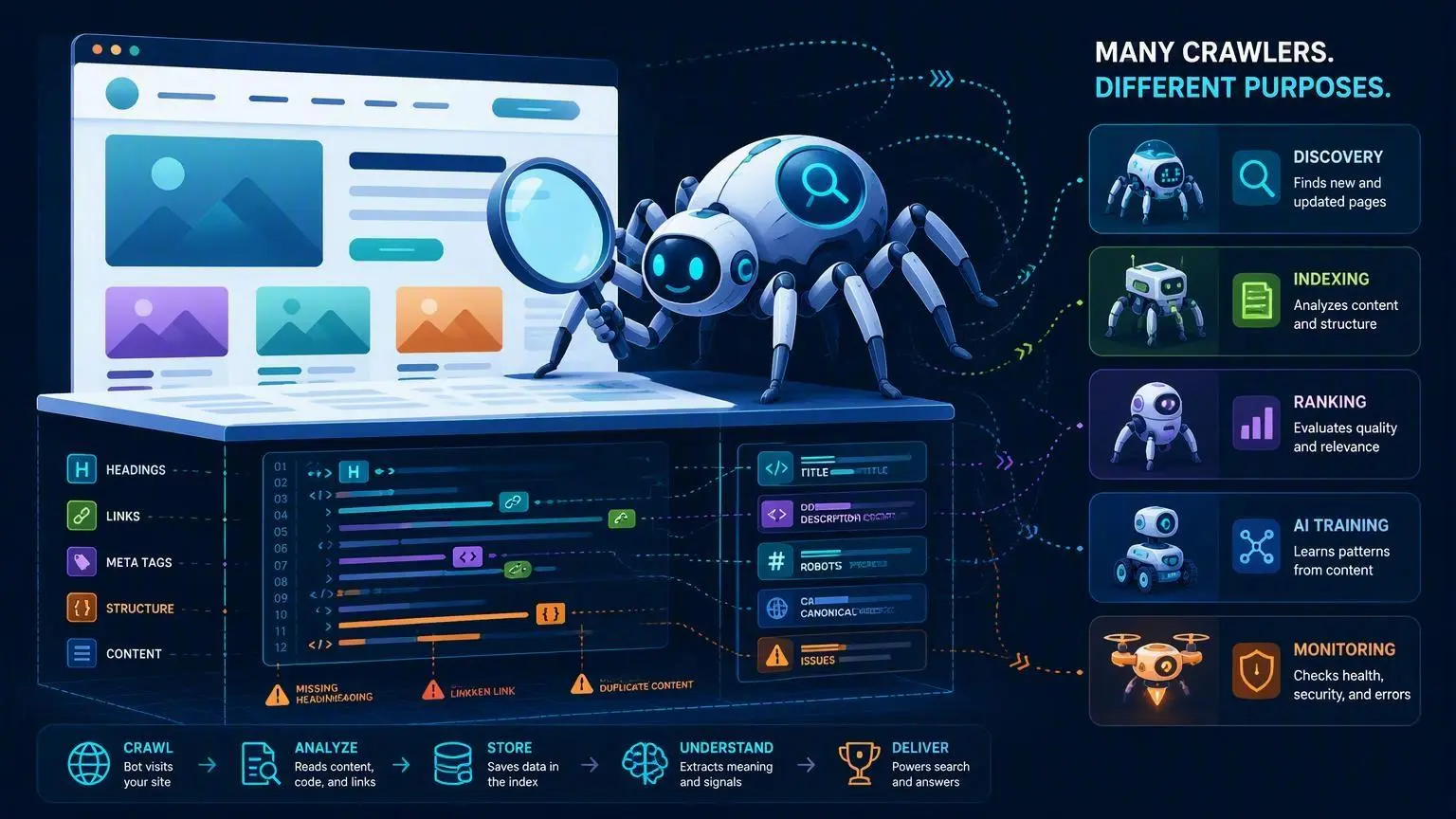
Free Googlebot Simulator: See What Search Crawlers See

TL;DR Summary: What Spiders See is a free Googlebot and AI crawler simulator that shows the raw information a website’s server returns before client-side JavaScript runs. It can uncover missing content, headings, links, metadata, image alt text, schema, crawl directives, firewall challenges, and other problems that may be invisible during a normal browser visit.
Key Takeaways:
- A website can look complete to a person while returning very little useful HTML to a crawler.
- What Spiders See simulates Googlebot, Bingbot, GPTBot, ClaudeBot, and a standard desktop browser.
- The tool analyzes one page at a time and assigns it a Spider Crawlability Score.
- Results include text, headings, links, images, metadata, schema, HTTP headers, response time, and raw HTML.
- The tool can expose client-side rendering and firewall problems that are difficult to see in a browser.
- A crawler simulation is a diagnostic test, not proof of how Google has indexed or ranked a page.
Table of Contents:
- What Is What Spiders See?
- Why Your Browser Does Not Tell the Whole Story
- What the Tool Checks
- How to Use the Googlebot Simulator
- Problems the Tool Can Uncover
- What the Results Do Not Mean
- Who Should Use This Tool?
- Frequently Asked Questions
See Your Website Through a Search Crawler’s Eyes
When you open a website, your browser does a lot of work behind the scenes.
It downloads the original HTML, loads stylesheets, runs JavaScript, retrieves images, and may request additional content from other servers. A second or two later, you see the completed page.
A search-engine spider does not necessarily experience that page in the same way.
The server may send the crawler a complete document containing all the important content. It might also send an almost empty shell that depends on JavaScript to construct the page. A security firewall could even mistake the crawler for an unwanted bot and return a challenge page instead of the real website.
I built What Spiders See to make these differences easier to find.
Try It Now:
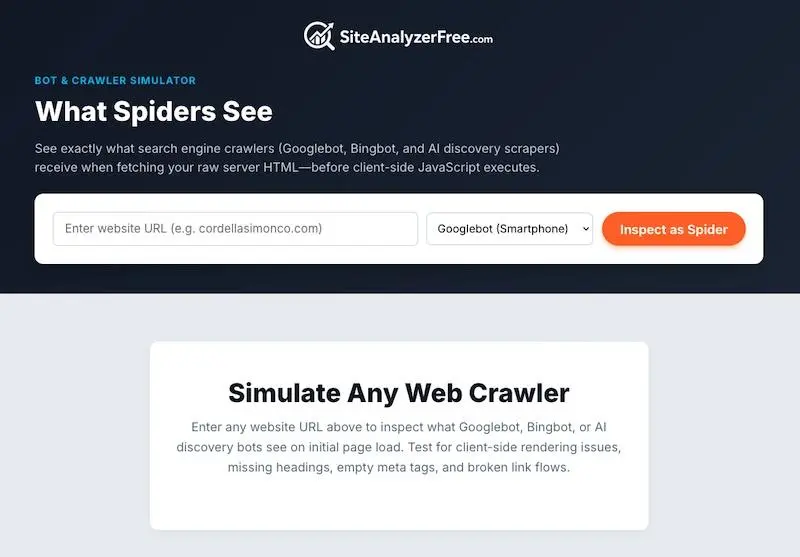
What Do Spiders See? / What Does AI See?
The What Spiders See tool is a free search-engine crawler simulator from SiteAnalyzerFree.com. You enter a page address, select a crawler, and the tool requests that URL using the selected crawler’s user-agent identity.
You can currently simulate:
- Googlebot for smartphones
- Googlebot for desktop computers
- Microsoft Bingbot
- OpenAI’s GPTBot
- Anthropic’s ClaudeBot
- The SiteAnalyzerFree crawler
- A standard Chrome desktop browser
The tool then extracts and organizes the information returned by the website’s server. Instead of showing you the polished visual design, it lets you inspect the page more like a crawler would during its initial request.
This is especially useful for finding information that is absent until JavaScript executes.
Why Your Browser Does Not Tell the Whole Story
A modern website can appear to work perfectly while having serious crawlability problems.
For example, a page built with Vue.js, React, Angular, or another JavaScript framework may initially contain little more than an empty container and references to script files. The scripts run in your browser and add the navigation, headings, text, images, and links afterward.
This approach is known as client-side rendering.
Google can execute JavaScript. Its official JavaScript SEO documentation explains how Google crawls, renders, and indexes JavaScript-powered pages.
Google also recommends server-side rendering or pre-rendering as a useful approach because it can make pages faster for users and crawlers—and because not every bot can run JavaScript.
That last part matters.
Your website may be visited by search engines, SEO tools, social networks, accessibility services, AI crawlers, link-preview systems, and other automated agents. They do not all render pages with the same capabilities or resources.
Providing useful information in the initial HTML makes a page more dependable across all of them.
What the Tool Checks
What Spiders See does more than display a block of source code. It organizes the response into practical checks that help you identify where a page may be failing.
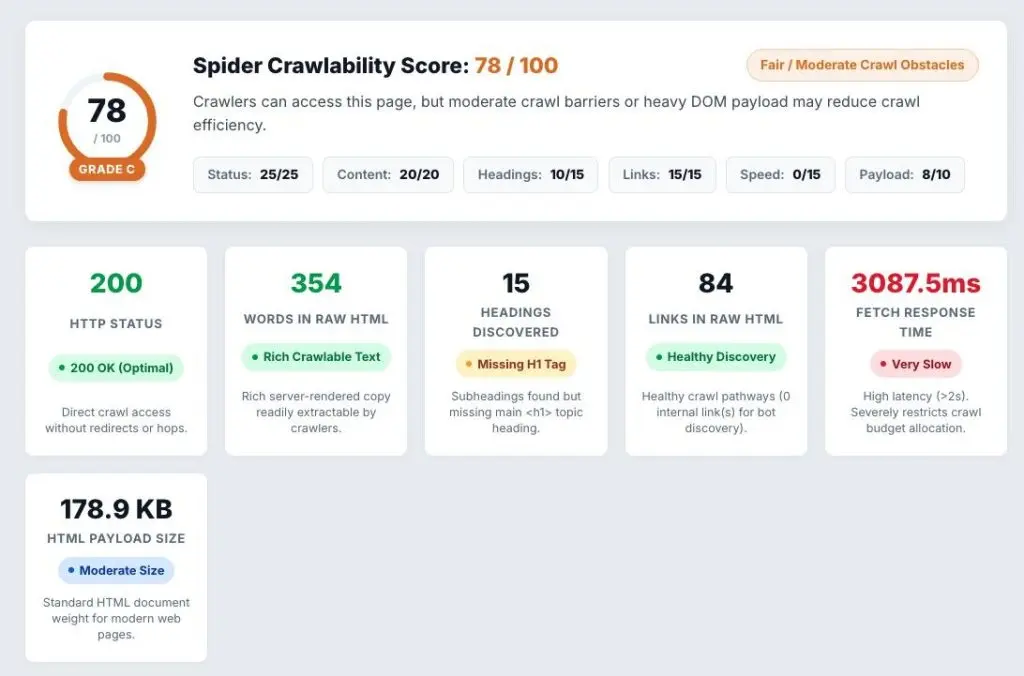
1. Spider Crawlability Score
Each tested page receives a Spider Crawlability Score from zero to 100, along with a letter grade and status summary.
The score considers six areas:
- HTTP status
- Readable content
- Heading structure
- Discoverable links
- Response speed
- HTML payload size
The score is intended to provide a quick overview and identify areas worth investigating. It is not a Google score or ranking factor.
2. HTTP status
The tool reports the HTTP response code returned for the requested page.
A direct 200 OK response usually means the server successfully returned a page. Redirects, missing-page errors, server errors, access denials, and firewall challenges may reveal why a crawler cannot reach the expected content.
3. Words in the raw HTML
The report counts the readable words found in the original HTML response.
If a visually detailed page contains only a handful of words in this view, JavaScript may be responsible for adding the content later. That does not automatically prevent Google from indexing it, but it gives you a reason to examine the page more closely.
4. Text-only view
The text-only view removes the design and presents the page’s content in its extracted reading order. This makes it easier to notice missing sentences, duplicated navigation, poorly ordered content, or pages that contain almost no crawlable text.
5. Heading outline
The headings panel creates an outline of the H1 through H6 tags discovered in the response. You can use it to check whether the page has an H1, whether headings are empty, and whether the hierarchy clearly organizes the subject.
This is a tool I’ve wanted for a long time. I know there are other tools out there, but this one has a lot of useful tools in one report. Seeing a list of headings is important because you get a headings view of the page, which is one way to make sure the page makes sense – by just looking at the headings. If they don’t flow, change your headings, and make sure keywords are in them, too – for SEO.
6. Discoverable links
The links panel lists conventional anchor links found in the raw HTML. It shows the anchor text, destination, whether the link is internal or external, and any applicable rel directives.
This can reveal navigation or internal links that appear visually but are unavailable until JavaScript executes. If the raw HTML contains no links, a basic crawler may reach a dead end instead of discovering other pages.
7. Images and alt text
The image panel lists image elements and their alt attributes. Missing or unhelpful alt text can make images harder for search engines and visitors using assistive technology to understand.
8. Metadata and schema
The metadata panel checks several items search engines use when processing a page, including:
- The HTML title
- The meta description
- The canonical URL
- The meta robots directive
- The X-Robots-Tag header
- JSON-LD structured data
A page may look fine while containing a missing canonical tag, an accidental noindex directive, or no structured data in its initial source.
9. HTTP headers
The HTTP headers panel shows instructions and technical information the server sends before the browser displays anything. Headers can expose redirects, crawler restrictions, content types, caching behavior, and security configuration.
10. Raw HTML source
For anyone who wants to go deeper, the raw source panel displays the actual HTML response received during the simulation.
You do not need to be a programmer to benefit from the other report sections, but the source is available when a developer needs to verify exactly what was returned.
11. HTML to markdown converter
In case you need a web page converted to markdown, this tool will do that for you.
How to Use the Googlebot Simulator
Using the tool takes only a few steps.
- Open the free What Spiders See crawler simulator.
- Enter the complete address of the page you want to inspect.
- Select the crawler you want to simulate.
- Run the inspection.
- Review the score and six crawlability categories.
- Open the detailed tabs to inspect the content, headings, links, images, metadata, headers, and raw source.
Test a specific page rather than assuming that one result represents the entire website. The home page, service pages, articles, product pages, and contact page may use different layouts or rendering methods.
It can also be useful to run the same URL with more than one crawler selection. Differences between responses may indicate that a firewall, security service, or server configuration treats certain user agents differently.
Problems the Tool Can Uncover
Here are some of the most useful warning signs to look for.
1. An empty JavaScript shell
A page may contain hundreds of visible words while the server response contains almost none. This commonly happens when client-side JavaScript is responsible for constructing the page.
2. Missing navigation links
If the normal website has a large navigation menu but the links panel is empty, those links may not exist in the initial HTML. This can affect page discovery for crawlers that do not render the site fully.
3. A crawler-blocking firewall
Some security systems mistake legitimate crawlers or crawler-testing services for hostile bots. Instead of returning the requested page, the firewall returns a verification challenge, access-denied response, or generic security page.
What Spiders See attempts to identify when this happens so you do not mistake a firewall response for the real page.
4. Weak or missing metadata
A missing title, generic description, incorrect canonical URL, or unexpected robots directive can change how a page is processed and presented in search.
5. Poor heading organization
The heading tree makes empty, missing, duplicated, or disorganized headings easier to spot than they are in a visual design.
6. Missing structured data
The tool identifies JSON-LD blocks in the initial HTML. If you expect organization, product, local business, article, or other schema but the report finds none, verify how and when that markup is being added.
7. Slow server response
The fetch-time measurement can expose a page that takes unusually long to respond. It is not a complete performance test, but it can help distinguish slow server response from problems that occur later in the browser.
What the Results Do Not Mean
Like every website diagnostic tool, What Spiders See needs to be interpreted correctly.
– It does not show your Google ranking
The Spider Crawlability Score is calculated by SiteAnalyzerFree.com. It is not produced by Google, Bing, OpenAI, or Anthropic.
A high score does not guarantee rankings, and a low score does not prove that a page has been removed from search. The score helps you find possible access and interpretation problems.
– It does not reproduce Google’s complete indexing system
The tool simulates a request using a selected crawler identity and analyzes the response. It does not operate from Google’s infrastructure or reproduce every stage of Google’s rendering and indexing systems.
For authoritative information about how Google processed a page you own, use URL Inspection in Google Search Console. The two tools serve different purposes and can be useful together.
– Raw HTML is not always the final indexed page
Google may execute JavaScript and index content that was absent from the initial response. The raw view shows the starting point and helps expose rendering dependencies; it does not claim that Google will never see content added later.
– One page is not the entire website
A successful home-page test does not guarantee that every product, service, article, or client-side route is equally crawlable. Test several representative URLs.
Who Should Use This Tool?
What Spiders See is useful for:
- Business owners wondering whether search engines can read their websites
- SEO professionals investigating crawlability or indexing problems
- Developers working with JavaScript frameworks
- Agencies reviewing a website before launch
- Publishers checking titles, canonicals, robots directives, and schema
- Website owners investigating AI crawler access
- Anyone comparing what a browser displays with what a server actually sends
It is especially valuable after a redesign, platform migration, theme change, firewall update, JavaScript deployment, or SEO configuration change.
Frequently Asked Questions
What is a search-engine spider?
A search-engine spider, bot, or crawler is automated software that requests pages and follows links to discover information on the web. Search engines use crawlers as part of the process of finding and indexing pages.
Is the Googlebot simulator free?
Yes. You can use What Spiders See without paying for an SEO subscription.
Does Googlebot run JavaScript?
Yes. Google can render JavaScript with a modern version of Chromium. However, the initial HTML still matters because it is the server’s first response, not all crawlers execute JavaScript, and scripts or required resources can fail.
Does the tool crawl an entire website?
No. What Spiders See inspects the individual URL you enter. Test several important pages if you want a broader view of a website.
Can it show what AI crawlers receive?
The tool can send requests identifying as GPTBot or ClaudeBot and show the server response returned to that simulated request. Results may reveal whether the server, firewall, or page treats those user agents differently.
What should I do if the report finds almost no content?
Compare the report with the visible page and determine whether JavaScript adds the missing content. Then check the page with Google Search Console’s URL Inspection tool. If important content depends entirely on client-side rendering, discuss server-side rendering, static generation, or pre-rendering with the platform provider or developer.
See What Your Server Is Really Sending
A website’s visual appearance is only one layer of the page. Search engines and other automated systems must first retrieve and interpret what the server gives them.
That response may contain a complete, organized document. It may contain an empty JavaScript shell. It may even contain a firewall challenge that the website owner has never seen.
Run your page through What Spiders See, review what was actually returned, and compare it with the website in your browser. You may discover that the two views are not nearly as similar as you expected.
📄 Download a PDF of This Article